Compare Two Columns In Excel
A cleaner workflow for finding matches and missing values before you commit to formulas
Many Excel comparison tasks start as a simple question: what is in column A that is not in column B, and what overlaps? In practice, the fastest first step is often to compare the extracted values directly, then move back into formulas only if the result has to stay attached to workbook rows.
When the tool is the right first step
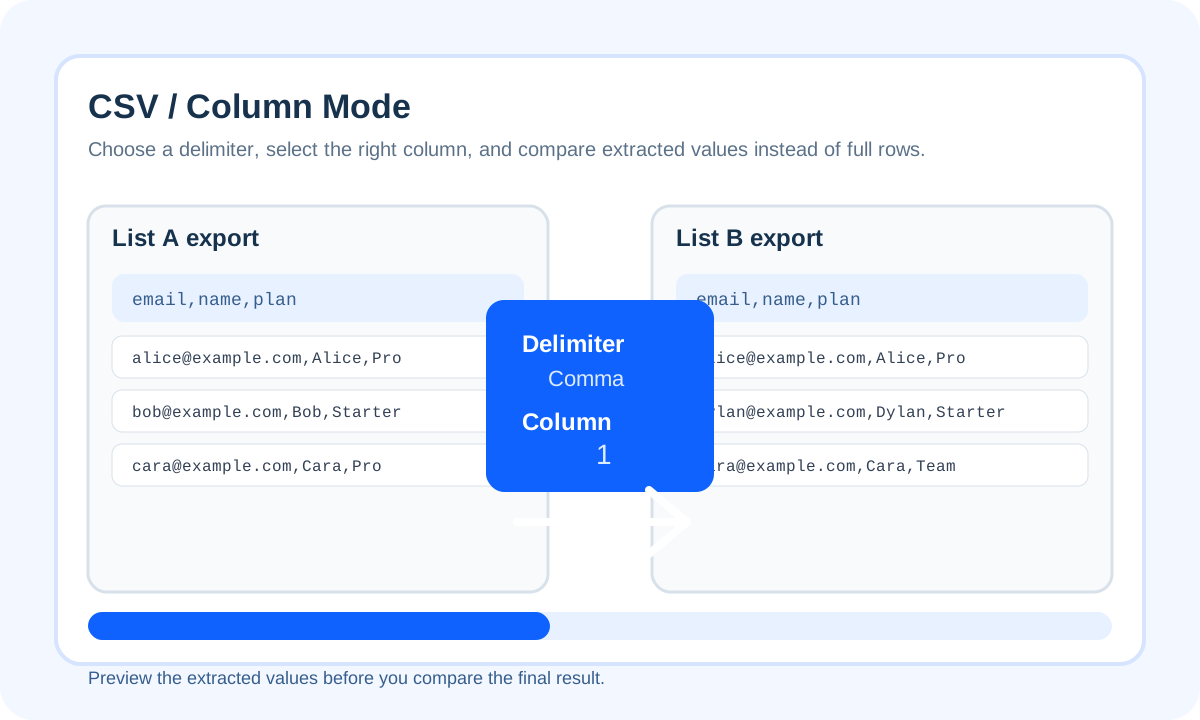
- Best for quick yes/no overlap checks
- Best when you only care about the values in the two columns
- Best before building or editing spreadsheet formulas
When Excel formulas are the better fit
| Need | Use the tool first | Use Excel formulas |
|---|---|---|
| Fast mismatch answer | Yes | Optional later |
| Label each row in the workbook | Not ideal | Yes |
| Recurring workbook workflow | Use for validation | Yes |
Common reasons Excel column comparisons go wrong
- Trim spaces before trusting the result
- Lowercase values when case should not matter
- Use duplicate-aware mode if repeated values carry meaning
- Compare one stable field at a time
Conclusion
For Excel column comparisons, use the online diff as the fastest first answer and move back into formulas only when row-level workbook logic is required.
FAQ
Should I use Excel formulas or the tool first?
Use the tool first when you need a fast answer. Use Excel formulas when the final result has to stay inside the workbook beside each row.
What if one column contains duplicates?
Use duplicate-aware compare when repeated values are meaningful and you need the mismatch counts to reflect actual occurrences.